AI chat alone
It tells you how
Ask for a castle and it can describe one, sketch a plan or give you commands to paste into Minecraft. You place the blocks and check the result.


Why Moxel
Claude or ChatGPT can dream up a castle. Connect it to Moxel, and it can build the castle, inspect it, improve it and hand you a real world to play.
Talking vs building
MCP (Model Context Protocol) is the connection that lets your AI use Moxel’s Minecraft building tools while you chat with it.
AI chat alone
Ask for a castle and it can describe one, sketch a plan or give you commands to paste into Minecraft. You place the blocks and check the result.
AI connected to Moxel
It places blocks and shapes buildings, generates landscapes, then looks at renders and close-up photos. It can fix details, export a Java or Bedrock world, and share your finished build on Explore with your approval.
Admins can also send a Moxel Worlds build into their own hosted Java server today. Everyone else gets this once world import opens to all accounts.
See the result
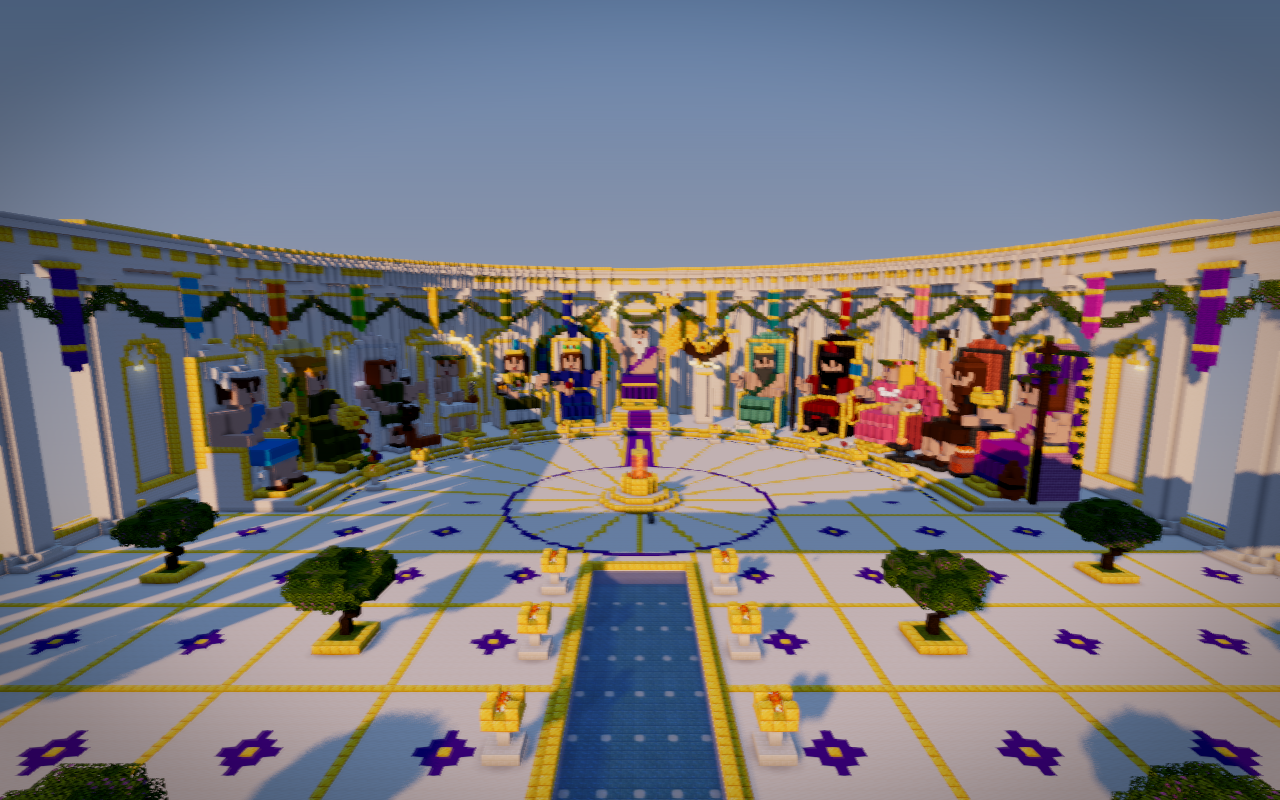
A world at this scale takes more than a prompt: terrain to set the scene, block and shape tools for the structures, renders and close-up photos to judge the details, and an export people can play. Mount Olympus is published on Explore, where you can see its pictures and download the build.
Explore Mount Olympus →The toolbox
These are the tools in Moxel’s hosted MCP connection. You ask in ordinary language; your AI chooses the tools.
58 tools your AI can use in Moxel Worlds
place_blocksSet individual blocks.fillFill a solid box, hollow shell or outline with blocks.clearSet a box to air, or clear the whole schematic when no box is given.replace_blocksReplace one block type with another, in a box or the whole schematic.clone_regionCopy and rotate a finished part of a build.run_scriptBuild repeated details and procedural shapes with a script.furnishAdd furniture made from vanilla blocks to a room.undoStep back through recent edits.redoRestore edits you undid.reconnectRepair fences, panes, stairs and redstone connections.sphereMake a sphere, dome, bowl or stretched oval.cylinderMake a cylinder, tower or disc.linePlace a straight or thick line of blocks.roofBuild a roof over a wall footprint.treeGrow a tree from a chosen species.polygonBuild from a custom or regular footprint.archBuild a round, pointed or flat arch.staircaseMake stairs between two heights.scatterSpread details like flowers, vines or lanterns.terrainSculpt ground around a build with a heightmap.generate_terrainGenerate a whole landscape with biomes, rivers and vegetation.carve_pathCut a road, river, canal or trench across terrain.flattenLevel ground for a building site.forestPlant trees across suitable ground.place_schematicStamp one build into a larger map.paint_biomeChange surface blocks to match a chosen biome.add_markerPin a named place such as spawn or a castle gate.list_markersSee the named places on a map.update_markerMove or rename a place marker.remove_markerRemove a place marker.renderSee a textured 3D view of the build.photoTake a close-up picture of a building or detail.render_mapSee a top-down map with terrain and coordinates.view_sliceInspect one exact layer of blocks.get_blocksRead the blocks and their states in an area.list_referencesFind sketches and reference images attached to the map.view_referenceOpen a sketch or reference image for the AI to inspect.search_blocksFind Minecraft blocks by name.block_infoCheck a block’s properties and valid settings.preview_blocksSee blocks side by side before choosing materials.set_biomePaint a Minecraft biome over an area.list_biomesBrowse available biomes and the ones used in this map.create_biomeMake a custom biome from a vanilla base.edit_biomeChange a custom biome’s colors and atmosphere.delete_biomeRemove a custom biome from a map.set_featuresSwitch optional map features on or off.list_schematicsFind your maps and see which one is active.create_schematicStart a new map or copy an existing one.open_schematicSwitch to a map and show it in Moxel Worlds.rename_schematicChange a map’s name or description.delete_schematicPermanently delete a map after your confirmation.schematic_infoSee a map’s size, block count, materials and biomes.export_schematicDownload a Java or Bedrock world, or a schematic file.import_schematicBring an uploaded schematic into Moxel Worlds.place_modelStamp a posed Moxel Model, like a creature mid-roar, into the world as real blocks.preview_modelSee a Moxel Model in a chosen pose before placing it.share_buildPublish a build on Explore after you approve it.add_share_picturesAdd more views to a published build.See the full tool reference for inputs and limits.
Moxel Servers · Beta
The Moxel hub hosts Minecraft Java servers, from Low to Ultra. Server hosting is a separate purchase from a Moxel Worlds account.
World import is available to admins today; opening it to all server owners is planned. It replaces the server’s world after a confirmation and keeps a rollback snapshot.
Explore server hostingStart with a free Moxel Worlds account, connect Claude or ChatGPT, and describe your first world.
Connect your AI